


11 December, 2010
iPhone 4. In so many ways, its a first
Retina display. 960 by 640 by Wow.
 With a remarkable 960-by-640 resolution in a 3.5-inch screen, text and graphics look unbelievably crisp and sharp. Thanks to the Retina display, everything you see and do on iPhone 4 looks amazing. That’s because the Retina display’s pixel density is so high, your eye is unable to distinguish individual pixels. Which means Text in books, web pages, and email is crisp at any size. Images in games, movies, and photos pop off the screen. And everything is sharper.

HD video recording. Life looks better in HD.

26 November, 2010
Mirror, Mirror On The iPhone 4
 The application uses the new iPhone's front-facing camera to function like a high-definition vanity mirror. The Mirror App yields an exact image rather than a mirror image.
17 November, 2010
Boost up your ADSL Speed|Tweak ADSL speed
04 October, 2010
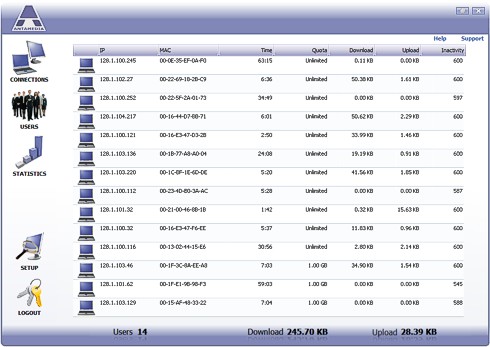
Bandwidth software for download limiting is very suitable for Internet and game cafes as it tightly integrates with Antamedia Internet cafe software enabling automatic blocking of traffic when user logout. Every user and computer can have different download and upload rates.


 | Windows Compatible Windows software with user-friendly interface. It doesn't require any proprietary hardware so you can use any standard PC with two network cards to setup bandwidth shaper. Zero Client Administration No client software installation is required. |
 | Bandwidth Limit Control (Traffic Shaping Management) A Bandwidth limit is configured in Kb/s for each account separately and represents speed a computer's Internet connection speed. With Bandwidth Manager it's easy to set higher bandwidth for some of your computers and lower bandwidth for others. Controlling individual users bandwidth insures one customer can not interrupt the activity of another. Bandwidth Quota Control (Traffic Quota Management) A Bandwidth quota is configured in Mbytes for every account and represents the total amount of traffic available to a customer. Example: A customer can download 10 MB in one hour. This option can be disabled if you want to limit only the connection speed. |
 | Accounts There are 3 ways to grant Internet access to computers in your network:  Using Accounts that specify the IP or MAC of a computer. If an IP/MAC is found in the database, the computer is logged in and displayed in the listAutologin - If enabled, a computer is logged in with default options (download, upload, quota, time etc)Using Antamedia Internet Caffe Server to fully automate the login/logout process. As soon as Member, Timecode or postpaid session is started, Server will communicate with Bandwidth Manager and allow Internet access to the computer where the customer started their session. At the end of the session, access is blocked to the same computer, disabling any Internet traffic. This can reduce bandwidth if some online game has remained active or if viruses, spyware or trojans are consuming your bandwidth Using Accounts that specify the IP or MAC of a computer. If an IP/MAC is found in the database, the computer is logged in and displayed in the listAutologin - If enabled, a computer is logged in with default options (download, upload, quota, time etc)Using Antamedia Internet Caffe Server to fully automate the login/logout process. As soon as Member, Timecode or postpaid session is started, Server will communicate with Bandwidth Manager and allow Internet access to the computer where the customer started their session. At the end of the session, access is blocked to the same computer, disabling any Internet traffic. This can reduce bandwidth if some online game has remained active or if viruses, spyware or trojans are consuming your bandwidthAccount Options Download and Upload rateQuota (total amount of data in MB available)Unlimited quota (if you wish to limit only download/upload rate)Time left (If you wish to set limited time per session)Unlimited time optionSet allowed access hours for loginAccount can be temporary disabledInactivity timeout (computer will be automatically logged out if there is no network activity within a specified time) |
 | MAC Whitelist Enables specified computers (identified by MAC address of network card) to pass-through the Bandwidth Manager. For example: allow your home computer to acquire access without any limitations |
 | Activity Log Bandwidth Manager stores different actions, including session start and stop, time of login attempts etc.Database is encoded and protected from unauthorized modifications |
 | Login Password To access all software options, the administrator must enter a password. Staff will not be able to access and modify account details if not authorized |
Key features
- Centralized configuration from a single network location.
- Flexible, prioritized, bidirectional rules to specify maximum data rates.
- Rules for IP addresses, protocols, ports (for TCP/IP) and network interfaces.
- Transparency for end users.
- No software installation is required on client workstations in most cases.
- Detailed and comprehensive statistics are available for each rule.
- Quotas and penalties to discourage misuse.
Screenshots


11 August, 2010
1. Shake 'em away
Ever had 10 Notepad, two PowerPoint and 50 Outlook windows open? Want to minimize all of them except the most important one? In Windows 7, you can grab the topof the window and shake it about to scare away all of the other open windows. Simple.
2. Jumplists
Jumplists are a new feature that gives you the option to view a list of recently accessed files by application, even when the application isn't open, by right clicking on the application's icon in the taskbar. It also allows you to quickly access a favourite playlist without opening your media player. Jumplists can also be found integrated into the Start Menu.
3. A step forward in previewing
In Vista, hovering over a minimized window on the taskbar would provide a preview of the window. In Window 7, a similar preview pops up which also gibes the option to close a window (within the preview), along with a full-size 'peek'. You can also press Win + T to scroll along previews in the taskbar.
4. Snap into place
Simply drag your window to the left or right edge of the desktop to snap and resize the window to one half of the screen. Drag the window to the top to maximize it. A pretty neat idea made neater by the use of the keyboard shortcuts (Win + respective arrow keys). No longer do you have to frustratingly position the mouse at the edge of the window to resize it.
5. XP Mode
This time, you do not have to slap your head that same way when Vista would not run an XP application. For the XP applications that do not work under Windows 7, you can download XP Mode free from the Microsoft website and run XP applications in an emulated XP environment in Windows 7. Imagine Parallels on Mac OS X without the need to fish out money on an extra OS.
6. An easier and quicker way to adjust multiple displays
Do you constantly connect your computer to different external monitors or projectors, especially at work? Try Win + P, and duplicating or extending your display to the other monitor takes just a second. Win + P present you with an Alt + Tab style menu, which is idea if you give a lot of presentations at work on your laptop.
7. A personalized Stage for your device
With the new 'Device and Printers' button on the Start Menu, devices which are connected to your computer can have their own Stage. This Device Stage presents supported devices with a photo-realistic render and a link to the vendor's website, along with other updates and useful information (such as firmware updates and manuals).
8. (Almost) eliminate the notification area!
What, I can even get rid of the clock and volume icons? Yes. Click the arrow that fives access to the overflow icons in the notification area and click 'customize'. Select each icon and click 'hide icon and notifications' to remove it. Clean.

