Showing posts with label Office 2010. Show all posts

12 July, 2010

How to Change and Set Default Font in Word 2010

Posted by Unknown | 12 July, 2010 | Category: , | 0 comments

Microsoft Office Word 2010 default theme style set uses Calibri as body font type and Cambria as headings font type as the default font type. Users can change and set the default font type, font style, font size, font color and other effects to another font settings by following step-by-step guide below.

Note that once the new font style settings is set as default, all new documents created by Word 2010 will use the new font style settings.

How to Change or Customize Default Font Settings in Word 2010
  1. Run Microsoft (MS) Office Word 2010.
  2. By default a blank document will be created. If there is no document been opened, create a new blank document by clicking on File -> New and select Blank document.
    Alternatively, open any existing Word document file.
  3. On the Home tab, click on the launcher arrow in the Font dialog box.
    Alternatively, press Ctrl-D.
  4. In the Font tab, change and configure the font, font style, font size, font color, and other settings that want to set as default.
  5. Click on Set As Default button, and then click OK to set the new font style as default for all future new document in Word 2010.
Tip: The new default font style is used only in new documents created after change is applied; existing documents are not affected. 

How to Set or Change Default Font in PowerPoint 2010

Posted by Unknown | | Category: , | 0 comments

All themes in PowerPoint 2010 has the default font of Calibri, causing new text box in the presentation to use Calibri font type when text is entered. The default font is been used whenever a new text box is added in the presentation, despite user has change the font for other text boxes.


The behavior of PowerPoint 2010 to always use default font style on new text boxes causes some inconveniences for some PowerPoint users who are using another font type and font size when typing in text, forcing them to manually change the font each time after adding a new text box in the presentation.
There’re a few ways that users can pursue in order to change the default font in PowerPoint 2010, depending on circumstances. Here’s the first Slide Master method of how to change the default font in PowerPoint 2010 so that PowerPoint will automatically apply the new font format throughout the presentation, or on all new presentations created.
Tip 1: Slide Master is the main slide that stores information about the theme and layouts of a presentation, including the background, color, fonts, effects, placeholder sizes, and positions.
Tip 2: For presentation that are using multiple slide masters (i.e. when applying more than one design template, which contains styles in a presentation, including the type and size of bullets and fonts; placeholder sizes and positions; background design and fill color schemes; and a slide master and optional title master), the font each slide masters must be changed individually.
  1. Run PowerPoint 2010.
  2. By default a blank presentation is opened. If there is no presentation been opened, create a new blank presentation by clicking on File -> New and select Blank presentation.
    Alternatively, open any existing PowerPoint presentation file.
  3. Go to View tab in the Ribbon, and then click Slide Master in the “Master Views” section.
    PowerPoint Master Slide
  4. The slide master view is opened, with a left pane that contains the slide masters and layouts.
    PowerPoint Master Slide
  5. Click on the slide master thumbnail or layout that contains the font that want to be changed. By default, the first layout is selected on opening Slide Master.
  6. Alternative 1: On the Slide Master tab, in the Edit Theme group, click Fonts, and then select a font style from the drop-down list.
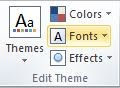
    Edit Theme Font
    Note that the fonts selected is a set of theme font to apply to both master heading title styles and master text styles. User can click on Create New Theme Fonts to select different combination of font types when there is no preferred theme font available.
    PowerPoint Font Settings
    Alternative 2: Click the title text or the level of body text to apply a new font style to, then go to Home tab. In the Font group, change the font, font size, font styles (bold, italic, underline), font effects and other settings as required. It’s also possible to click on launcher arrow to open Font dialog box for full font customization.
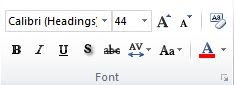
    PowerPoint Font Configuration
  7. Repeat steps above for any other fonts, or any other slide masters or layout that user wants to change.
  8. Once change is completed, click on Close Master View on the Close group of Slide Master tab.
    Close Master View
  9. PowerPoint will return to normal view, and the new font will be applied and changed on the presentation.
  10. Steps above will only change the default font in the current presentation. To make the new font as the default font in all new presentation created in future, follow the guide below:
    1. Go to View tab in the Ribbon, and then click Slide Master in the “Master Views” section.
    2. Click on File tab, and select Save As.
    3. Enter Blank as the “File name” (extension of .potx should be added automatically if the file type selected is correct).
    4. Select PowerPoint Template as the “Save as type”.
    5. PowerPoint automatically chooses the correct folder once PowerPoint Template is selected, thus do no change the saving location. As a reference, the folder to save the Blank.potx or Blank.pot (in Office prior to version 2007) is as follow:
      Windows Vista and Windows 7: C:\Users\User Name\AppData\Roaming\Microsoft\Templates
      Windows XP: C:\Documents and Settings\User Name\Application Data\Microsoft\Templates
      Blank.potx PowerPoint Template
       If the save as location is not in the folder above, navigate to the folder manually. The User Name should be substituted with actual user name.
    6. Click on Save button.
The second method to change the default font in PowerPoint 2010 is to change the font sets inside the Theme Font used by the presentation. As shown in guide above, user can change the Theme Font used by the Master Slide to change the default font used in the presentation. Thus, the alternative method is to change the font set by the default Theme Font of the Master Slide.
Almost all themes of PowerPoint 2010 uses the “Office” theme font as the default theme font. Thus in order to change the default font, follow these steps:
  1. Run PowerPoint 2010.
  2. Go to Design tab.
    PowerPoint Fonts

  3. Click on Fonts at the rear of Themes group, and select Create New Theme Fonts.
    Create New Theme Font
  4. Select the default fonts that user wants to use as heading font and body font.
  5. Enter Office as the name of the new theme font.
    New PowerPoint Theme Font
  6. Click on Save button to replace existing Office theme font with new font sets. New font styles will be used by PowerPoint when entering text. 

09 July, 2010

Microsoft (MS) Office 2010 System Requirements

Posted by Unknown | 09 July, 2010 | Category: | 0 comments

Microsoft Office 2010, the new version of business and office productivity product is scheduled to be released by June 2010, with Office 2010 beta been made publicly available for free download. Microsoft has revealed editions and suites of Office 2010 that will be available in retail market or through volume licensing, and Office 2010 prices. Now, it’s time to determine is existing computer hardware is capable to install and run Office 2010, or whether there is additional hardware support required in order to fulfill Office 2010 system requirements to upgrade from previous version of Office such as Office 2007 to Office 2010.

Generally, according to Microsoft Office 2010 Engineering blog, most, if not all, computer that currently can run Office 2007 can run Office 2010, and so do most new desktop, laptop or netbook computer been purchased. However, users who currently run Office 2003 will have to verify that the existing computer has the hardware specifications and operating system listed below.

Office 2010 Hardware Specification System Requirements:
  • Processor: 500 megahertz (MHz) processor or higher.
  • Memory (RAM): 256 megabyte (MB) RAM or higher.
  • Hard Disk Space: 1.5 GB; a portion of the disk space will be freed after installation if the original download package is removed from the hard drive.
  • Display: 1024×768 or higher resolution monitor.
  • Operating System: Windows XP with Service Pack (SP) 3 (32-bit operating system (OS) only) or Windows Vista with SP1, Windows 7, Windows Server 2003 R2 with MSXML 6.0, Windows Server 2008, or later 32- or 64-bit OS.
  • Other: You don’t need to replace hardware that is capable of running Office 2007; it will support Office 2010.
  • Additional. Requirements and product functionality can vary based on the system configuration and operating system.
  • Graphics processor (GPU video adapter) – Use of graphics hardware acceleration requires DirectX 9.0c compatible graphics card with 64 MB or higher video memory (optional to help speed up some graphics features and charts rendering tasks in Office 2010, and to help using advanced transitions, animations, and video features new to PowerPoint 2010). 

Microsoft Office 2010 ISO (RTM Volume Edition) Leaked Torrent Download

Posted by Unknown | | Category: , | 0 comments

Microsoft Office 2010 has reached RTM (Release to Manufacturing) milestone on Apirl 15, 2010 as build version 14.0.4763.1000, and within days, both 32-bit (x86) and 64-bit (x64) Office 2010 ISO images have been leaked for download via BitTorrent network, days before MSDN and TechNet subscribers can download the ISO officially on April 22, and beats Volume License customers with active Software Assurance (SA) who can only download the 2010 set of products in the English via Volume Licensing Service Center starting April 27.


Note that although the main RTM assembly build of Office 2010 has version number of 14.0.4763.1000, its individual applications inside the package may have different build numbers as their final RTM version. In fast, in About dialog, MSO has is version 14.0.4760.0, while Word 2010 is version 14.0.4762.0, Excel 2010 and Visio 2010 are version 14.0.4756.0, Project 2010 is version 14.0.4751.0, PowerPoint 2010 is version 14.0.4754.0, Outlook 2010 is version 14.0.4760.0, and Access 2010 is version 14.0.4750.0. Only OneNote 2010 has build version of 14.0.4763.0. And even the Office 2010 suite setup.exe has the build version of 14.0.4755.0.


The leaked Official 2010 RTM ISO images are from Select volume licensing channel, which means the leak includes Office 2010 Professional Plus edition, which is essential for KMS activation. And for the can’t wait, here’s the BT torrent download links for Office 2010 official and original final RTM ISO images.

Download 32-bit (x86) Office 2010 ISO (Select Volume License)

Build: 14.0.4763.1000
File: 14.0.4763.1000_Select_volume_ship_x86_en-us_dvd.iso
Size: 3,490,926,592 byte
SHA1: 92F9B3BD1029A1FF524B8A2BD8EF4F7E5C304F5B
MD5: 78E007959180C6B8CFE840F1D9312A42
CRC: 1EA98A3F

Torrent (Magnet Link):
Download 32-bit (x86) Office 2010 Proofing Tools Kit ISO

File: 14.0.4763.1000_ProofingToolsKitCompilation_none_ship_x86_en-us_dvd.iso
Size: 800,602,112 byte
SHA1: 880732E76925ABDA26978A94DE0CCDD6902366C6
MD5: 5E62C5B8CE4311B97787C9419B280C77
CRC: D31E9896

Torrent (Magnet Link):
Download 64-bit (x64) Office 2010 ISO

Build: 14.0.4763.1000
File: 14.0.4763.1000_Select_volume_ship_x64_en-us_dvd.iso
Size: 4,018,466,816 byte
SHA1: 88E8A16A21C7C71E210282B39C54A0A782637580
MD5: 430A89F6F3FBB2AAB914E22DC1846093
CRC: 312F7C7A

Torrent (Magnet Link):
Download 64-bit (x64) Office 2010 Proofing Tools Kit ISO

File: 14.0.4763.1000_ProofingToolsKitCompilation_none_ship_x64_en-us_dvd.iso
Size: 820,123,648 byte
SHA1: 1C8CAD70537EBE6B731D9D26EF7D5DCDE4B3FC57
MD5: 3BFC7C7EB5FAC1773F49C4B118D670B3
CRC: 5538B0F7

Torrent (Magnet Link):
Note: Microsoft Office 2010 Proofing Tools is an add-in package that contains the proofing tools that Microsoft makes for over 30 languages. For example fonts, spelling and grammar checkers, AutoCorrect lists, AutoSummarize rules (Microsoft Word only), translation dictionaries, and for Asian languages, Input Method Editors (IMEs or alternative keyboard layout) for Traditional Chinese, Simplified Chinese, Japanese, Or Korean.
For users who looking to purchase Office 2010, the retail of Office 2010 will only start from around mid June. However, there is Office 2010 Technology Guarantee program which provides free upgrade to Office 2010 when it’s available for Office 2007 purchased and activated between March 5, 2010 and September 30, 2010. Separately, a business launch event for Office 2010 has been scheduled to be held in New York on May 12, where business customers would be able to buy Office 2010 starting May 12.
The prices of Office 2010, editions of Office 2010 which spans Office 2010 Home and Student, Home and Business, Professional and Professional Academic, Starter (ad-support version) and system requirements of Office 2010 have been revealed earlier.

Download Free “Getting Started With Microsoft Office 2010″ e-Book

Posted by Unknown | | Category: , | 0 comments

To provide an overview of the latest Microsoft Office 2010 suites, Microsoft has released “Getting started with Microsoft Office 2010” digital e-book in DOC format. This book has been designed to provide an overview of the Microsoft Office 2010 suites and information about how to get started with Office 2010 for IT generalists, IT operations, help desk and deployment staff, IT messaging administrators and consultants. The book is authored by Microsoft Office System and Servers Team.


Contents in the “Getting started with Microsoft Office 2010”  e-book includes:
  • Exploring Office 2010.
  • Office 2010 suites.
  • Comparisons of Office 2010 editions.
  • What’s new for IT professionals in Office 2010.
  • SharePoint Workspace 2010 overview.
  • Overview of the Office user interface in Office 2010.
  • User interface differences in Office 2010 from earlier versions of Microsoft Office.
  • Product and feature changes in Office 2010.
  • Changes in Office 2010.
  • Changes in Access 2010.
  • Changes in Excel 2010.
  • Changes in Office 2010.
  • Changes in InfoPath 2010.
  • Changes in OneNote 2010.
  • Changes in Outlook 2010.
  • Changes in PowerPoint 2010.
  • Changes in Project 2010.
  • Changes in Publisher 2010.
  • Changes in SharePoint Designer 2010.
  • Changes in SharePoint Workspace 2010.
  • Changes in Visio 2010.
  • Changes in Word 2010.
  • Changes introduced in the 2007 Office system.
  • System requirements for Office 2010.
For those who interest to get a free copy of “Getting started with Microsoft Office 2010” e-book in DOC format, can download from Microsoft without stepping through any registration: ORKGetStarted.doc

hit counters